How to set up email in Outlook 2016 ?

The following guide provides step by step instructions on how to set up email account on your Outlook application. The steps and be used for setting up your main email account and additional email accounts that you’ve created.

This guide will take you through the steps of setting up your email address in Outlook.


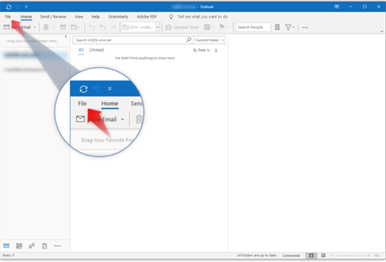
Step 1 – Open Outlook and click File.
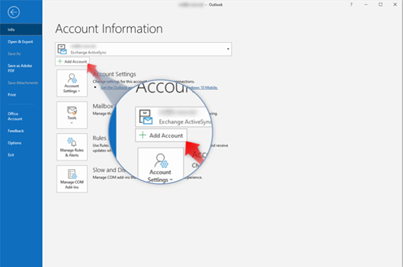
Step 2 – Click Add account.
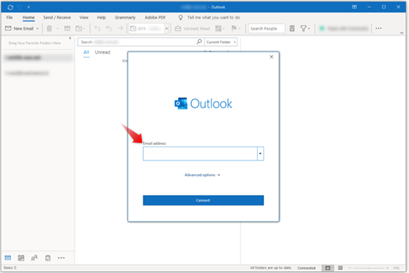
Step 3 – Type in your email address and click Connect.
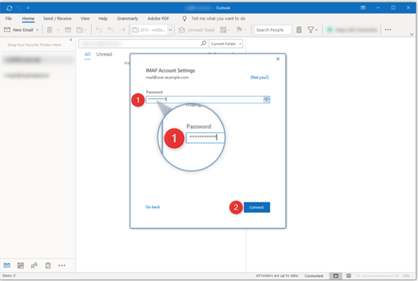
Step 4 – Enter your password and click Connect to continue.
INFO:  At this point if your Outlook does not connect automatically please select the manual settings and enter information below:

Incoming mail: mail.yourdomain.co.za   port: 993     SSL /YES

Outgoing mail: mail.yourdomain.co.za   port: 465      SSL /YES

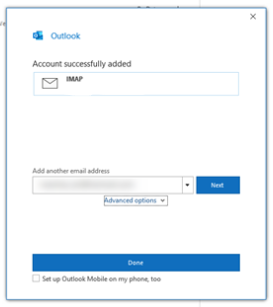
Step 5 – Completed! Click done to start using your email account.
TIP: Should you experience issue any error messages at this point please begin out online chat with out urgent.

  • How to set up email in Outlook 2016 ?
  • 0 Usuários acharam útil
Esta resposta lhe foi útil?

Artigos Relacionados

Email: What are my email server settings?

This guide provides you with your email server settings as well as a generator for your unique...

How to log in to cPanel?

This quick guide will take you through the steps of logging in to your cPanel. Step 1- Login to...

How to update nameservers?

This guide will take you through the steps of updating your domain nameservers via the veloment...

Where do I find my latest statement?

This guide provides you with a step by step instructions on how to find , download or print your...

How to set up Outlook on Mac?

1. While Outlook is open, click the “Tools” tab and then “Accounts”. A new window will open which...

Powered by WHMCompleteSolution