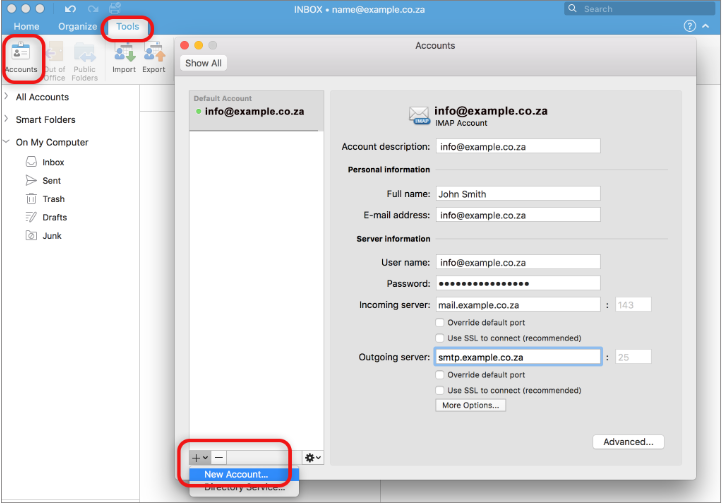
1. While Outlook is open, click the “Tools” tab and then “Accounts”. A new window will open which will list any other accounts already set up.
2. At the bottom left, click on the “+” button and then “New Account”.
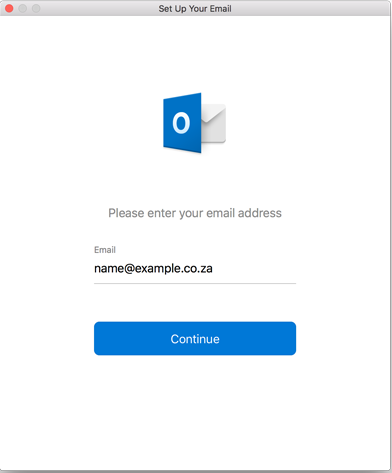
3. Add your email address and click “Continue”.
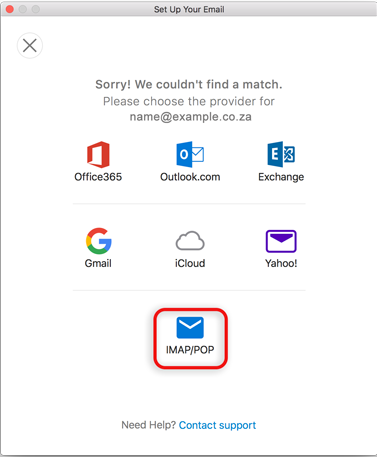
4. Outlook will either succeed or fail to search for the provider. If it succeeds, it should set up your email account automatically. Should it fail, select IMAP/POP.
Now, you will have to enter your account information.
5. Enter your account information similar to how it is shown below. Replace “example.co.za” with your own domain name.
6. Untick the “Use SSL to connect” if you do not have an SSL certificate installed.
7. Change the port number for your Outgoing Server from 25 to 587.
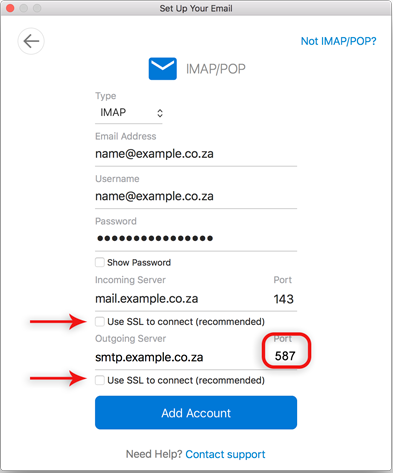
8. Click on “Add Account” and then “Done”.
Please ensure that all settings are correct on this screen – now choose More Options
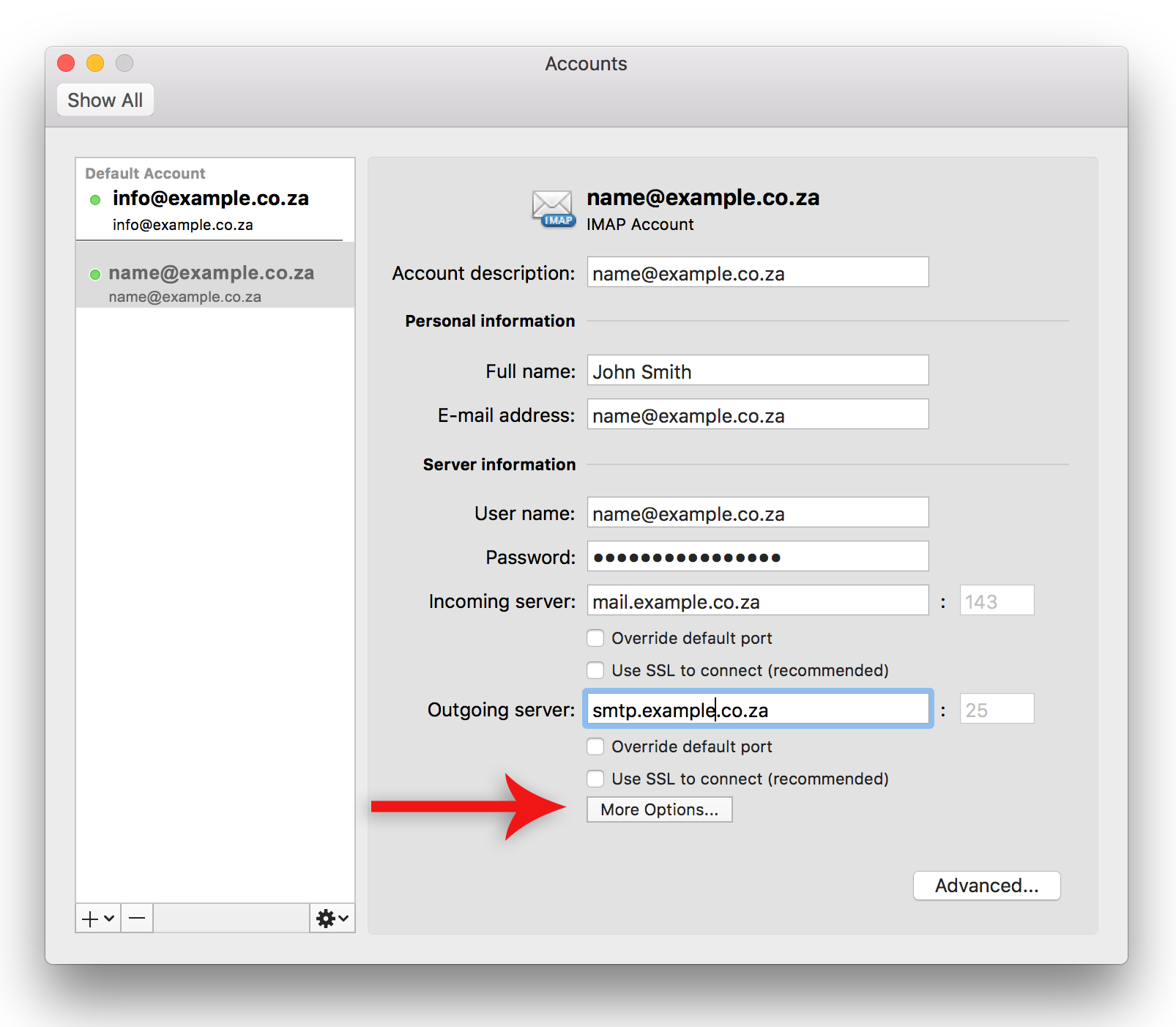
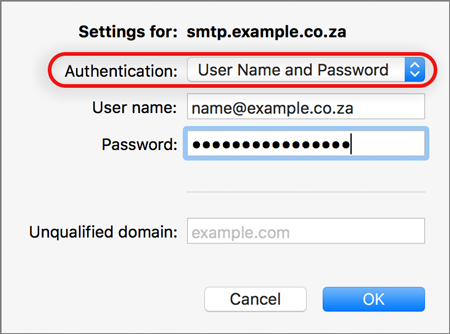
10. Further Outgoing server settings
11. Authentication: Use the dropdown arrow to select User Name and Password
12. Enter in your User name (full email address) and Password
13. Ignore Unqualified domain
14. Click OK